
Picking a scheduling app sounds like a 10-minute decision. Then you spend three hours comparing features you’ll never touch.
If you’re a freelancer or a small team lead choosing between Calendly vs Cal.com, the comparison articles out there are almost useless. They list every feature side by side without telling you which ones matter at your size.
This comparison skips the feature parade. It focuses on pricing, free plan lock-in, and the stuff that changes your daily workflow when you’re booking 5 to 50 meetings a week.
Both tools solve the same problem: killing the back-and-forth emails around scheduling. But the way they solve it will cost you different amounts of money, time, and frustration depending on how your work runs.
How Calendly and Cal.com Handle Pricing Differently
The price tag looks similar at first glance. Both have free plans, both charge per user per month, and both gate their best team features behind paid tiers. But the gap between what “free” means on each platform is massive.
Calendly Free Plan Limits
Calendly’s free plan gives you 1 event type and 1 calendar connection. That’s it. No workflows, no payment collection, no custom branding. If you’re a freelancer who offers a 30-minute discovery call and a 60-minute strategy session, you’ve already outgrown the free plan on day one.
The Standard plan starts at $12/user/month, and the Teams plan jumps to $20/user/month. Enterprise pricing begins at $15,000/year, which puts SSO and SCIM out of reach for anyone running a small operation.
Cal.com Free Plan Compared
Cal.com’s free plan is a different animal. Unlimited event types, unlimited bookings, multiple calendar connections, workflows, routing forms, and even payment collection through Stripe. All at $0.
The Teams plan is $15/user/month, and the Organization tier runs $37/user/month with SAML SSO and SOC2 compliance. For a freelancer testing the waters, Cal.com’s free tier is a fully working product, while Calendly’s free tier is a demo.
| Feature | Calendly Free | Cal.com Free |
|---|---|---|
| Event types | 1 | Unlimited |
| Calendar connections | 1 | Multiple |
| Workflows/automations | No | Yes |
| Payment collection | No | Yes (Stripe) |
| Custom branding | No | No (Cal.com branding shown) |
| Round-robin scheduling | No | No (Teams plan) |
The takeaway: Cal.com gives more at $0, but Calendly’s paid plans have deeper enterprise features.
Also Read: Key Differences Explained Between Similar Products
The Integration Count Trap
Every Calendly vs Cal.com article makes a big deal about integration numbers.
Calendly has 100+ native integrations including Salesforce, HubSpot, Pipedrive, and ActiveCampaign. Cal.com uses an App Store model where you install connections for calendar services, video tools, payment processors, and CRMs.
I think picking a scheduling app based on integration count is a mistake for teams under 10. Calendly’s 100+ integrations sound impressive until you realize the average freelancer connects Google Calendar, Zoom, and Stripe. That’s 3 tools. Both platforms handle those 3 connections on their free plans.
When Calendly’s Integrations Matter
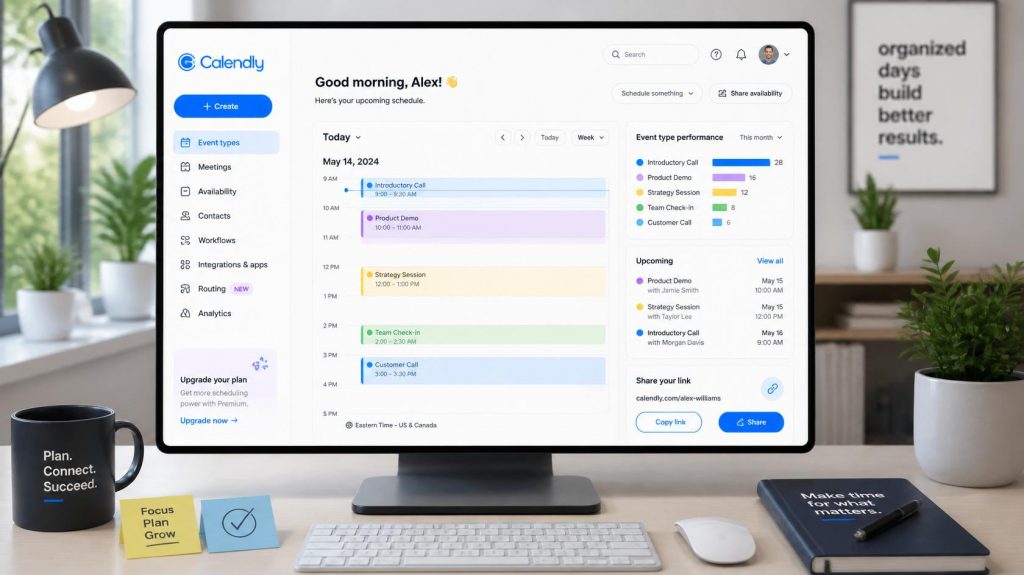
Calendly’s integration depth pays off in one specific scenario: sales teams routing inbound demos through a CRM pipeline. The native Salesforce and HubSpot connections push meeting data into your CRM without custom engineering.
Companies like Twilio and Dropbox run their scheduling through Calendly for this exact reason. If your team books 200+ demos a month and every meeting needs to hit a Salesforce record, Calendly is the right call.
When Cal.com’s API Approach Wins
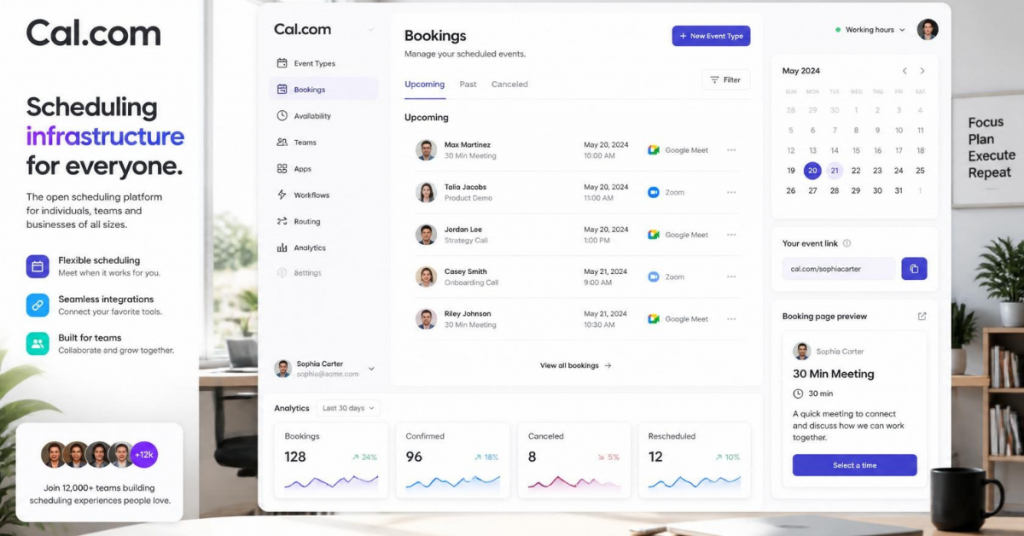
Cal.com’s open-source architecture means you can build custom integrations yourself. The API is well-documented, fully open, and covers everything the product does.
Cal.com also supports platforms Calendly doesn’t: Zoho, Lark, Vimcal, WhatsApp, Telegram, Signal, Discord, and Element Call. If your team uses niche tools or needs scheduling embedded inside your own product, Cal.com is in a different category than Calendly.
So the question isn’t “who has more integrations?” It’s “do you need CRM-pipeline automation, or do you need API flexibility?” Those are two different problems.
Self-Hosting and Data Ownership: Does It Matter for Small Teams?
This is where the two platforms split completely. Calendly is cloud-only. All your booking data and calendar metadata live on Calendly’s servers (AWS), with SOC 2 Type II compliance. For 95% of freelancers and small teams, that’s fine.
Cal.com is open-source under AGPL. That means you can self-host the entire platform on your own server.
The code runs as a Next.js application with PostgreSQL. A basic VPS, Docker setup, TLS termination, and SMTP configuration gets you a fully working scheduling system where you control every byte of data.
Who Should Care About Self-Hosting
If you’re in healthcare, government, or a regulated industry with strict data residency requirements, self-hosting Cal.com may be the only scheduling tool that qualifies. Same goes for companies building scheduling into their own product: Cal.com’s Platform plan starts at $299/month for embedding.
But here’s my honest take on self-hosting for freelancers: skip it. One developer who self-hosted Cal.com put it perfectly. He loved the open-source approach, but maintaining his own instance meant every update caused downtime.
The hosted version of Cal.com at $0 gives you the same features without the server babysitting. Save self-hosting for when your data compliance needs demand it.
Real-World Usability for Booking 5 to 50 Meetings a Week
Feature lists don’t tell you how a tool feels at 8 AM on a Monday when three clients are trying to book the same slot. Both tools handle the basics well: event types, custom availability, buffers, minimum notice, padding, time-zone detection, and confirmation emails. The differences show up in the edges.
Calendly’s Strength: Zero Learning Curve
Calendly defined the category. It has 20 million+ users, and the booking page design is instantly recognizable to anyone who’s scheduled a meeting in the last five years. That familiarity matters. A prospect clicking your Calendly link knows exactly what to do. The click-to-book friction is basically zero.
The admin experience is polished too. Round-robin scheduling distributes meetings evenly across team members. Collective scheduling finds times when multiple people are available. Routing forms qualify leads before they book. These features are battle-tested at enterprise scale.
Cal.com’s Strength: Flexibility Per Dollar
Cal.com’s interface is clean and has improved a lot since launch. It’s not as instantly familiar as Calendly, but non-technical users won’t feel lost. The real advantage is functionality per dollar. Cal.com includes routing forms on the free plan.
Built-in Cal Video (with recording and transcription) means you don’t need a separate conferencing tool. And workflows that automate reminders, confirmations, and follow-ups are available without paying.
For a freelancer booking 5 to 15 meetings a week, Cal.com’s free plan covers everything Calendly charges $12/month for. That $144/year savings adds up fast when you’re watching every expense.
The Lock-In Question Nobody Talks About
A detail that comparison articles skip: the tool you start with is probably the tool you’ll keep for years. Scheduling links get embedded in email signatures, website headers, landing pages, social bios, and auto-responders.
Switching means updating every single one of those touchpoints and retraining clients who saved your old link.
Calendly’s restricted free plan pushes you toward a paid commitment early. Once you’re paying $12/month and your link is everywhere, the switching cost climbs fast.
Cal.com’s generous free plan delays that commitment, which gives you more runway to decide if the tool fits your workflow before you’re locked in.
I think this is the single biggest factor freelancers ignore when comparing Calendly vs Cal.com. The monthly price difference matters less than how quickly each platform creates dependency.
Cal.com’s free tier lets you run a full scheduling operation for months before you need to spend a dollar. Calendly’s free tier forces the spending decision within your first week.
Questions People Ask About Calendly vs Cal.com
Q: Can I switch from Calendly to Cal.com without losing my bookings?
Past bookings stay in your Calendly account, but future bookings won’t transfer automatically. The real pain is updating every link you’ve shared. Plan on spending an afternoon replacing URLs across your website, email signatures, and social profiles.
Q: Is Cal.com reliable enough for client-facing scheduling?
Cal.com’s hosted version has solid uptime, and the interface is polished enough for professional use in 2026. The booking experience is clean and mobile-friendly. Clients won’t notice a difference compared to Calendly unless they specifically look for the branding.
Q: Does Calendly work with Apple Calendar?
Calendly supports Google Calendar, Outlook, and Office 365, but Apple Calendar (iCloud) support is limited. Cal.com supports iCloud calendar connections along with Google, Outlook, and CalDAV, making it the better pick for Apple-heavy workflows.
Q: Which scheduling app is better for accepting payments?
Both support Stripe for paid bookings. Calendly adds PayPal as an option on paid plans. Cal.com includes Stripe payment collection on the free plan, so you can charge for consultations without upgrading. If payment collection matters and budget is tight, Cal.com wins here.
Q: Do I need a developer to use Cal.com?
No. The hosted version at cal.com works like any other SaaS product: sign up, connect your calendar, share your link. The developer-focused features (self-hosting, API customization, code-level tweaks) are optional extras, not requirements.
Conclusion
The right scheduling app depends on where your money goes and what you refuse to pay for. Calendly rewards teams that need polished CRM integrations and zero-effort setup.
Cal.com rewards freelancers and small teams that want maximum features at $0. Pick the one that matches how your calendar looks next month, not how the feature list looks today.