
A monitor proves its worth after the novelty of its panel fades. High-Value Monitors should remain comfortable through reports, editing, calls, spreadsheets, and late-night browsing without turning the desk into a cable problem.
This guide compares practical screen value across 27-inch, 32-inch, and ultrawide options. It focuses on color, clarity, connections, ergonomics, and ownership rather than impressive-looking specifications alone.
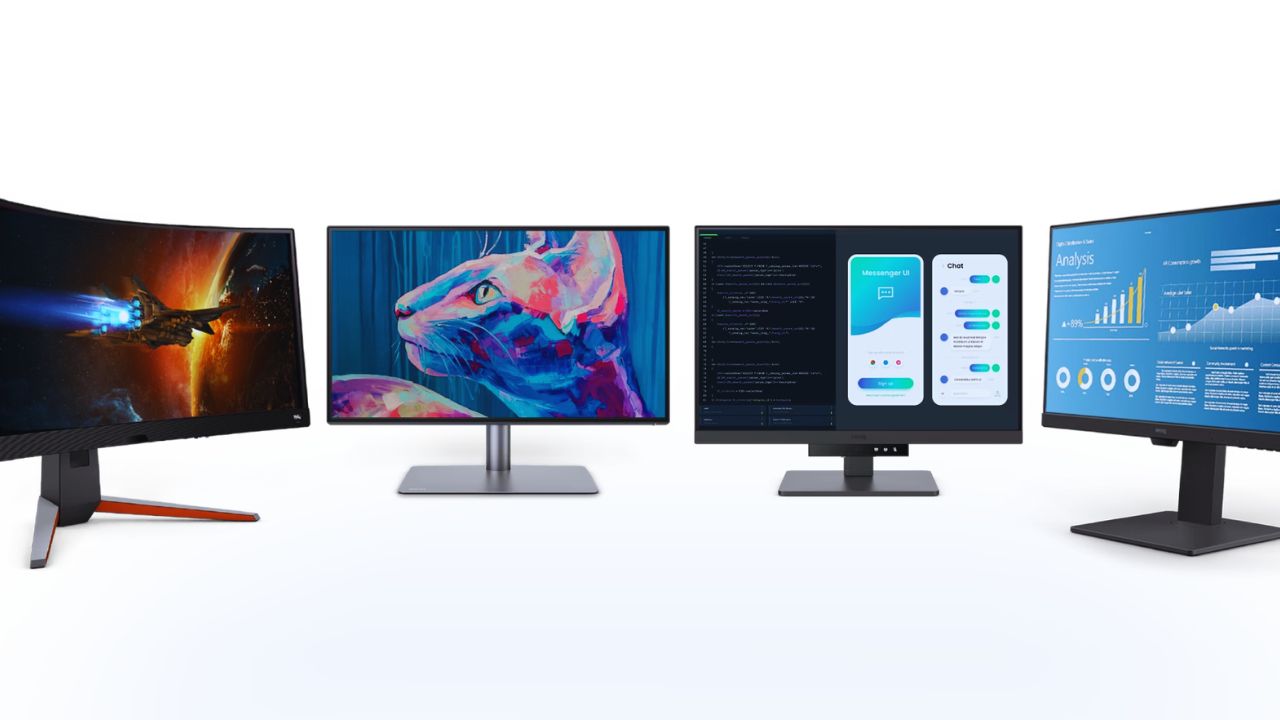
Let Your Desk Choose First
A monitor can look excellent in a store and still feel wrong at home. Desk depth, window glare, chair height, laptop ports, and hours spent reading text all change the experience.
Start with your working position before choosing a panel technology. That prevents a large, bright, expensive screen from becoming tiring after an ordinary afternoon.

Size Means Distance and Layout
A 27-inch display often suits compact desks and focused work, while a 32-inch screen gives documents, timelines, and split windows more breathing room.
A 34-inch ultrawide can replace two monitors for people who keep messages, reference material, and one main task open.
Consider viewing distance and available desk depth before assuming wider is automatically more productive. Your eyes should not need to travel constantly across the panel.
Resolution Changes Everyday Reading
Resolution matters most when you read, write, edit, or compare fine details for hours. A 27-inch 4K panel can make text and interface elements crisp, but operating-system scaling affects comfort.
A 34-inch WQHD display offers less pixel density but more horizontal room. Compare text clarity with workspace width, then test your normal scaling rather than trusting showroom wallpaper.
Choose a Panel for Your Room
Panel labels are useful clues, but no technology is universally right. IPS often suits shared viewing and everyday color work; VA can offer deeper contrast; OLED brings strong blacks and fast motion.
The room still matters. Consider ambient light and screen content before paying extra for an advantage you will rarely see.
IPS and VA: Everyday Trade-Offs
A well-made IPS screen can suit office work, photos, browser-heavy research, and shared desks because its image tends to stay consistent when you move.
VA may appeal to people who watch films or work in dim rooms and prefer stronger contrast. Check off-angle appearance and dark-scene behaviour in person when possible. Uniformity can vary between individual units, even within one model.
OLED Needs a Clear Use Case
OLED can look striking for motion design, gaming, and video because dark areas remain genuinely dark and response times are quick. It may be less comfortable for bright, static spreadsheet work if brightness control or image retention is a concern.
Read the warranty wording. Give static interface habits and room brightness as much attention as contrast, especially when the monitor stays on for hours.
Also Read: Headphones Catalog Explained Simply: Drivers, Codecs, Battery Life
Color Accuracy Depends on Your Workflow
A wide color gamut is useful when your work requires it, but ordinary web images can look oversaturated without a suitable mode. Photographers, video editors, designers, and print workers should identify the color space their final work needs.
Most office users benefit more from consistent sRGB colour and comfortable brightness than from a large gamut they never manage.
Factory Modes Need Checking
Look for a clear sRGB or Rec.709 mode, a stated white point, and controls that survive updates. The useful question is whether the monitor holds a sensible image at the brightness your room requires.
A calibration device can refine a panel, but cannot fix weak uniformity. Give stable factory settings priority over marketing accuracy claims that are difficult to reproduce.
Two Reference Models
The Dell Pro 27 Plus 4K USB-C Hub Monitor P2725QE is a useful desk-work example because it combines a 27-inch 4K IPS panel with USB-C power delivery, Ethernet, and an adjustable stand.
The ASUS ProArt Display PA279CV is worth comparing when factory-calibrated sRGB and Rec.709 coverage matter more than high-refresh gaming. Check the exact regional specification and included accessories before treating either as a universal pick.
Ports and Ergonomics Matter Daily
A monitor may deliver good image quality yet become annoying because a laptop needs a separate charger, a webcam crowds the desk, or a stand cannot reach eye level.
USB-C can simplify a one-cable setup when power delivery matches your computer, while a KVM helps people switching between two machines. Give desk simplicity and physical adjustment the same importance as resolution.
Check Power Delivery and Switching Before You Need Them
Not every USB-C port carries video, data, and enough charging power at once. Read input and power specifications for your laptop and display, then confirm wake-up, charging, and peripheral behaviour in reviews or during a return period.
This avoids cable surprises and dock dependence after installation. A KVM helps only when you regularly share a keyboard, mouse, and webcam between devices.
A Good Stand Can Prevent a Bad Purchase
Height adjustment, tilt, swivel, and pivot are practical for taller users, standing desks, and work mixing documents with video. VESA support can help when desk space is tight or the supplied stand is shallow.
Consider eye-level positioning before falling for thin-bezel appeal. Comfortable posture can matter more over a year than a small brightness advantage.
Refresh Rate and HDR Need Context
Higher refresh rates can make pointer movement, scrolling, timelines, and gaming feel smoother. They also raise demands on a laptop or desktop, particularly at 4K.
HDR labels need similar caution because a brighter peak is not controlled local dimming or reliable tone mapping. Ask whether smoother motion or better highlight detail improves tasks you repeat, instead of buying a label.
Test It During the Return Window
Set up the display where you will use it and test the work that prompted the purchase. Pay attention to real screen comfort and daily connection behaviour:
- Read documents beside your usual window and room lighting.
- Connect every laptop, drive, webcam, and charging cable you rely on.
- Check uniformity, dead pixels, fan noise, and stand movement.
Live With Your Monitor First
The highest-value monitor is rarely the one with the loudest feature list. It is the screen that fits your desk, keeps text readable, connects without clutter, and handles the work you actually do.
Measure first, verify the exact model and official return terms, then test it before the return period expires. When long-session comfort guides the shortlist, lasting desk value becomes easier to recognise than launch-day excitement.